One new setting and a batch of viewer fixes, most of which only showed up if you embed the viewer in a small box on your own site.
Tours you can hide behind a password
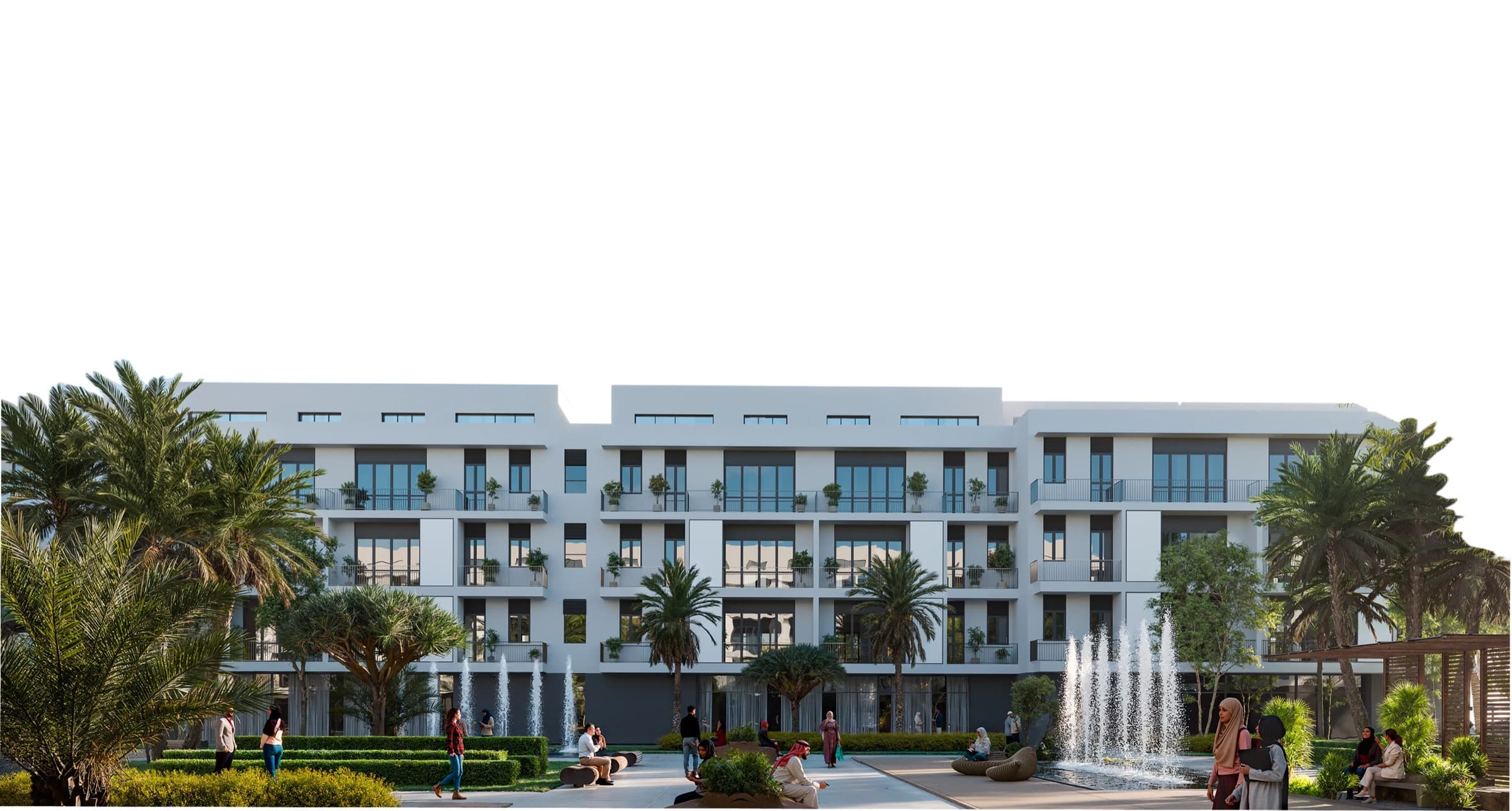
A developer selling the first building of a three-building scheme has a problem we had no answer for. The renders show the finished masterplan, because that is what the architect drew and what the marketing suite displays. A buyer looking at a seventh-floor flat opens the view that includes the two towers still to be built, decides their outlook is about to disappear, and stops returning calls. The towers are real and will be built, but putting them in front of someone comparing two flats on a Tuesday evening loses the sale and tells them nothing they could act on.
You can now set a password on a project and protect individual tours with it. Set the password in Viewer options, switch on "Protect with password" for any tour you want kept back, and then choose how those tours appear to visitors.
Hidden takes them out of the viewer entirely. There is no padlock and no greyed-out tab, so visitors see the tours you left open and have no reason to think there are others. This suits the case above, where a tab labelled "Tower 3" would raise the question you were trying to avoid.
Shown with a padlock keeps the tours in the switcher with a padlock next to the name. A visitor who opens one is asked for the password, and if the project has an agent contact set up, the prompt shows it, so a buyer who wants to see more knows who to call. The right password opens every protected tour at once, the same as the unlock link does. This suits projects where the extra views are part of the sales conversation and you want buyers to ask for them.
In both modes your own team gets a single unlock link that shows everything without a prompt. It sits at the top of the project's settings page as soon as a password is set, together with the password itself and the number of tours it protects, so support can read the password out to a buyer who has lost it. You can copy the link, change the password or switch between the two modes from there. Anyone who opens the plain link, or strips the password off the end of the shared one, is back to the public view.
Nothing changes until you set a password, so every existing project carries on exactly as it did.
One thing to be straight about: this keeps the protected tours out of a visitor's path, and that is all it does. The images still travel to the browser with the rest of the page, so anyone who thinks to read the page source can find them. Use it to stop sending buyers somewhere unhelpful, not to protect anything that actually needs protecting.
Switching views without losing your place
Projects with several tours of the same building had two annoyances when moving between them.
The first was losing your angle. You would rotate to the south-west corner, switch from the summer render to the winter one, and land back at the front of the building, so you had to rotate round again to compare the same thing. The viewer now keeps the frame you were on when you switch, so the two renders line up and the comparison is actually a comparison.
The second was the flicker. Switching used to rebuild the image from scratch, which read as a blink. Views that share a rotation now crossfade into each other instead.
The tour switcher also used to leave out nested tours, so a project with tours inside tours could have levels you could reach by clicking the building but not from the switcher itself. Every level now appears there.
The viewer in a small box
Plenty of customers embed the viewer in a panel on their own site rather than giving it the whole page, and several things only went wrong at those sizes.
Hotspots could land outside the visible area, so a clickable area you had drawn was simply unreachable. The floor plan preview could open at a size that covered the controls you needed to close it. Fullscreen did not always fill the screen it was given. Below a certain height the unit list and the image fought over the same space and both ended up unusable, and the same thing happened on a phone in landscape.
All four are fixed, and the viewer now reflows for short and narrow containers instead of assuming it has a full browser window. If you embed the viewer, it is worth another look at whatever size you give it.
Also
The unit name now survives when a project hides every column in the list. Hiding all of them used to leave rows you could click but not read, which was never the intention. The name stays regardless of what else you switch off.